







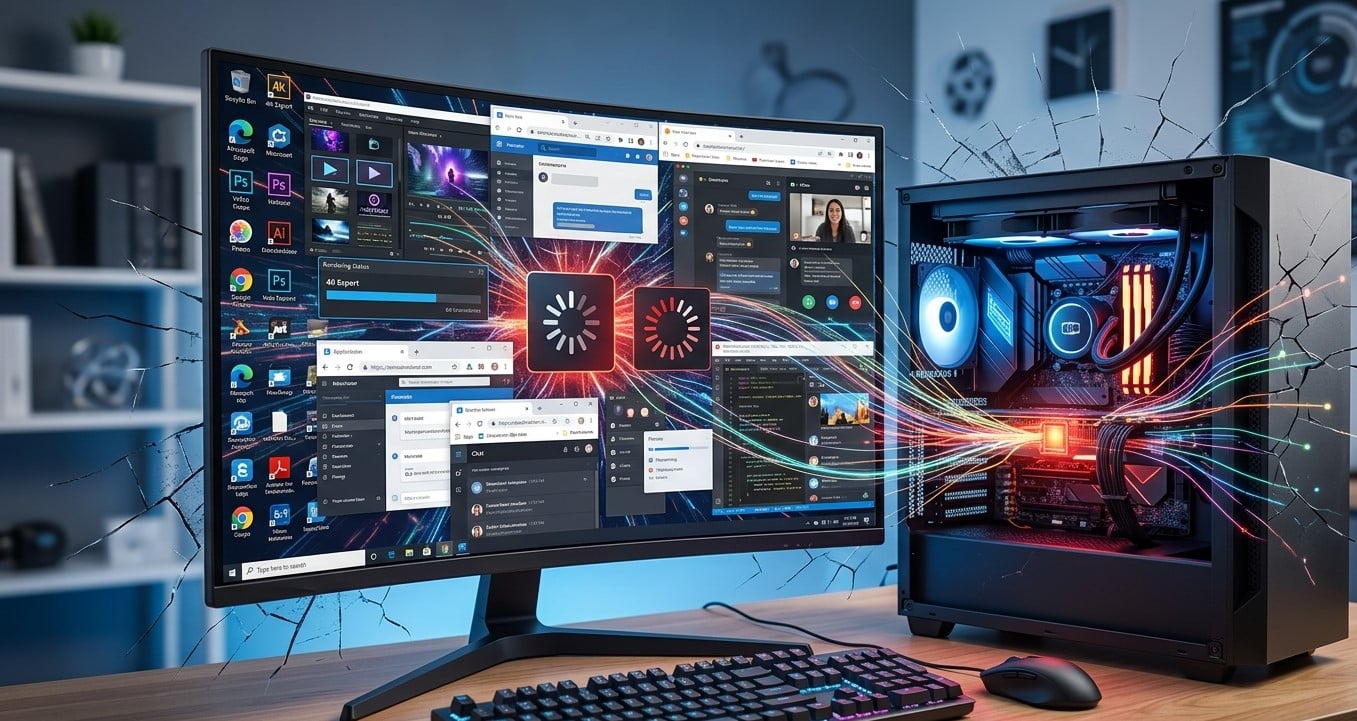
Running multiple applications makes it easier to work, study, communicate, and manage daily tasks. However, if your computer repeatedly freezes when several programs are open, even simple activities can become frustrating. The problem may be caused by insufficient RAM, high CPU usage, limited storage space, outdated drivers, or conflicting software. Whether you need troubleshooting advice or professional Computer Repair Albany, network setup Albany, or wireless network setup Albany services, understanding the underlying cause can help restore smooth computer performance.
Table of Contents
- Common Reasons Your Computer Freezes
- Check RAM and CPU Usage
- Close Unnecessary Background Applications
- Free Up Storage Space
- Update Windows and Device Drivers
- Check for Overheating and Hardware Problems
- When to Seek Professional Help
- Frequently Asked Questions
- Get Professional Computer Repair Assistance
1. Common Reasons Your Computer Freezes
Several factors can cause a computer to become unresponsive when multiple applications are running.
- Insufficient RAM: Your computer may struggle to handle several memory-intensive programs simultaneously.
- High CPU usage: Applications performing demanding tasks can consume too much processing power.
- Limited storage space: A nearly full drive can interfere with temporary files and system operations.
- Outdated drivers: Driver problems can cause instability and application conflicts.
- Overheating: Excessive heat may reduce performance or cause unexpected system behavior.
- Software conflicts: Certain applications may interfere with one another or consume excessive resources.
Identifying the cause helps you choose an effective solution rather than replacing components unnecessarily.
2. Check RAM and CPU Usage
Windows Task Manager can help identify applications consuming excessive resources.
Press Ctrl + Shift + Esc to open Task Manager. Select the Processes tab and review the CPU, Memory, and Disk columns.
If memory usage remains near its maximum or one application consistently consumes substantial processing power, your computer may be struggling with its current workload.
Close unnecessary applications and observe whether performance improves. Avoid ending unfamiliar Windows processes, because doing so may disrupt system operations.
3. Close Unnecessary Background Applications
Many applications continue running in the background even when you are not actively using them. Browser tabs, synchronization tools, communication applications, and automatic updates can all consume system resources.
To reduce the workload:
- Close programs you do not currently need.
- Reduce the number of open browser tabs.
- Disable unnecessary startup applications through Task Manager.
- Restart your computer to clear temporary issues.
- Reopen your essential applications and test performance.
If freezing occurs only when one particular application is open, check whether it needs an update or has known compatibility issues.
4. Free Up Storage Space
A computer with limited free storage may experience slowdowns, especially when several programs create temporary files or access large amounts of data.
Open Settings > System > Storage in Windows to review disk usage. Remove unnecessary temporary files and uninstall applications you no longer use.
If your computer still relies on a traditional hard disk drive, upgrading to a compatible solid-state drive (SSD) may improve loading times and overall responsiveness.
Always back up important files before making significant storage changes.
5. Update Windows and Device Drivers
Outdated operating system components and drivers can contribute to crashes and freezing.
Open Windows Update and install relevant updates. Check your computer manufacturer’s official website for compatible graphics, chipset, and other device drivers when necessary.
If freezing began immediately after installing a new application or update, investigate whether that change introduced a compatibility problem. Avoid downloading drivers from unfamiliar websites.
6. Check for Overheating and Hardware Problems
Excessive heat can affect processing performance and cause instability. Dust buildup, blocked ventilation, or a failing cooling fan may prevent your computer from operating properly.
Place your computer on a hard surface, keep air vents clear, and ensure that cooling fans can operate freely. If the system becomes unusually hot or shuts down unexpectedly, professional inspection may be necessary.
Persistent freezing can also indicate faulty RAM, a failing storage drive, or other hardware problems.
7. When to Seek Professional Help
If your computer continues freezing after basic troubleshooting, a technician can perform diagnostic tests to identify memory limitations, storage problems, overheating, or software conflicts.
Professional Computer Repair Albany services can help determine whether your computer needs maintenance, repairs, or hardware upgrades.
If freezing occurs alongside dropped internet connections or problems accessing shared office devices, professional network setup Albany or wireless network setup Albany support may also help investigate related connectivity issues. However, network configuration is unlikely to resolve freezing caused by insufficient RAM or overheating.
Frequently Asked Questions
Why does my computer freeze when I open several applications?
Common causes include insufficient RAM, high CPU usage, background processes, overheating, and software conflicts.
Can adding more RAM stop my computer from freezing?
Yes, if memory limitations are the main cause. However, additional RAM will not fix problems caused by faulty hardware, malware, or overheating.
Does a full hard drive make a computer freeze?
A nearly full drive can contribute to performance problems because the operating system and applications need working space for temporary files and other tasks.
Should I restart my computer when it freezes?
If the computer becomes completely unresponsive, you may need to force a shutdown as a last resort. Unsaved work may be lost, so try waiting briefly and saving your work whenever possible.
Get Your Computer Running Smoothly Again
Frequent freezing does not necessarily mean you need a new computer. Checking resource usage, closing unnecessary programs, freeing storage, and updating software can often improve performance. If the problem continues, trusted Computer Repair Albany, network setup Albany, and wireless network setup Albany professionals can help diagnose computer and connectivity issues.