






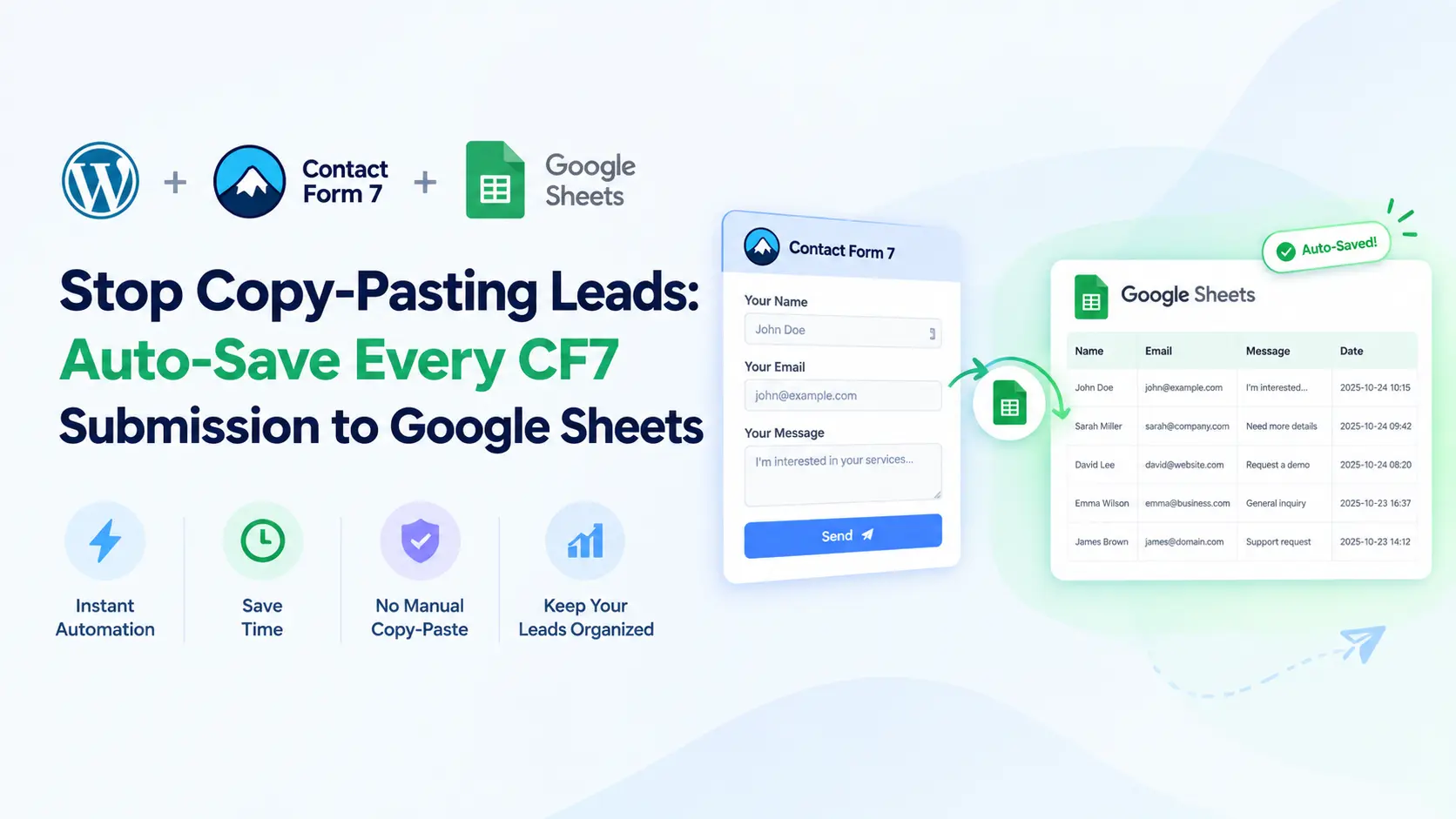
Stop Copy-Pasting Leads: Auto-Save Every CF7 Submission to Google Sheets
If your WordPress website uses Contact Form 7 to collect enquiries, you may be spending too much time copying form submissions from emails into a spreadsheet. As the number of enquiries grows, manual data entry becomes repetitive, difficult to manage, and more likely to result in missing information.
The solution is to connect Contact Form 7 (CF7) to Google Sheets and automate the transfer of form data. With a compatible Google Sheets connector, each successfully processed submission can be sent to a spreadsheet without requiring you to copy every lead manually.
This workflow helps freelancers, agencies, consultants, and small businesses keep their enquiries organized, share lead information with their teams, and build a more consistent follow-up process.
Why Stop Copying Contact Form 7 Leads Manually?
A well-organized website should do more than attract visitors; it should also help businesses manage incoming enquiries efficiently. As part of a broader website growth strategy, automating Contact Form 7 submissions with Google Sheets can reduce manual data entry and make lead follow-ups easier to manage.
- Wasted time: Someone must open emails and transfer information into a spreadsheet.
- Missed enquiries: Busy inboxes make it easier to overlook a potential customer.
- Inconsistent records: Different team members may enter information in different formats.
- Delayed follow-ups: Leads may wait while someone updates the tracking sheet.
- Limited visibility: Your team may not have one shared view of all incoming enquiries.
Automating this process reduces repetitive work and creates a central place to review form submissions.
How Does Contact Form 7 to Google Sheets Automation Work?
The workflow is straightforward: a visitor submits your WordPress contact form, the connector processes the submission, and the configured form data is sent to the selected Google spreadsheet.
Once configured and tested, the process can run automatically for subsequent submissions.
For example, a business website might collect a visitor’s name, email address, phone number, service interest, and message. These values can be mapped to spreadsheet columns so that each submission becomes a new record.
It is important to distinguish between form submission and successful synchronization. A visitor may successfully submit a form even if a separate integration encounters an authentication, configuration, or API error. Test the complete workflow and monitor it periodically.
How to Auto-Save Contact Form 7 Submissions to Google Sheets
You can set up this workflow using a compatible WordPress Google Sheets connector rather than writing a custom API integration.
Step 1: Prepare Your Google Sheet
Open Google Sheets and create a new spreadsheet for your website enquiries.
Give it a descriptive name, such as “Contact Form 7 Leads.” Add column headers that match the information you want to collect.
For example:
| Name | Phone | Service | Message | |
|---|---|---|---|---|
| Example Lead | lead@example.com | 0000000000 | Website Design | Requesting a quote |
This is sample data for illustration only. Use your actual Contact Form 7 fields when configuring the integration.
Keep the headers clear and consistent. If you plan to track follow-ups, you can add additional columns such as Lead Status, Assigned To, and Next Follow-Up.
Step 2: Install a Contact Form 7 Google Sheets Connector
In your WordPress dashboard, go to Plugins → Add New Plugin and search for a compatible Contact Form 7 Google Sheets connector.
Install and activate the plugin you choose. GSheetConnector offers an integration designed to connect Contact Form 7 with Google Sheets.
Review the available setup methods and requirements in the official Contact Form 7 Google Sheets Connector documentation and product information.
Step 3: Authenticate Your Google Account
Open the connector’s integration settings and follow the instructions for connecting your Google account.
The available authentication process may vary according to your plugin version and configuration method. Use an account that has access to the destination spreadsheet, and confirm that authorization completes successfully.
For business websites, consider using an organization-managed Google account and restrict spreadsheet access to authorized team members.
Step 4: Connect Your Contact Form to Google Sheets
Open Contact → Contact Forms in WordPress and edit the form you want to connect.
Locate the connector’s settings for that form. Select the destination spreadsheet and worksheet, or provide the required spreadsheet details if your configuration uses manual selection.
Map each Contact Form 7 field to the appropriate Google Sheets column.
For example:
- Your name field maps to Name.
- Your email field maps to Email.
- Your telephone field maps to Phone.
- Your service selection maps to Service.
- Your message field maps to Message.
Save the configuration and double-check that each field is mapped correctly.
Step 5: Submit a Test Form
Visit the page where your Contact Form 7 form appears and submit a test entry using information you control.
Open your Google Sheet and check whether the submission appears in the expected columns.
If the row is missing, review the authentication status, spreadsheet selection, field mapping, connector configuration, and any available error logs. Do not assume the integration is working until you have verified a successful test.
After the test succeeds, submit another entry to confirm that subsequent submissions are also transferred correctly.
What Happens After You Automate CF7 Submissions?
Once the integration is working, Google Sheets becomes more than a destination for form data. You can use it to create a practical workflow for managing enquiries.
Organize every enquiry in one place
Instead of manually assembling a list from email notifications, your team can review incoming submissions in a shared spreadsheet. Filters make it easier to find enquiries by service, date, or other collected fields.
Make lead follow-ups easier
Add a Lead Status column with options such as New, Contacted, Qualified, Won, and Lost. You can also record the assigned team member and the next follow-up date.
These fields help your team understand which leads require attention without changing the original form submission.
Review incoming lead trends
Google Sheets can help you count enquiries, compare interest in different services, and review how leads progress through your sales process. Formulas, filters, and pivot tables can provide useful reports without requiring a dedicated reporting platform.
Remember that a submitted form is not necessarily a qualified lead or a completed sale. Keep these stages separate when measuring business performance.
Best Practices for Reliable Automation
Test after changes. Whenever you change form fields, spreadsheet headers, or integration settings, submit another test entry.
Protect lead information. Contact forms may collect personal information. Restrict spreadsheet access, avoid collecting unnecessary details, and establish an appropriate retention policy.
Monitor the integration. Check periodically that new submissions are reaching the correct spreadsheet. If the connector offers logs or diagnostics, use them to investigate missing entries.
Keep a backup strategy. Google Sheets should not automatically be treated as your only record of a submission. Consider whether your business needs an additional recordkeeping method.
Maintain a clear follow-up process. Automation moves information; it does not contact leads or close sales by itself. Assign responsibility for reviewing new enquiries and responding promptly.
Frequently Asked Questions
Can Contact Form 7 automatically save submissions to Google Sheets?
Yes. A compatible Google Sheets connector can transfer configured Contact Form 7 submission data to a selected spreadsheet after the integration has been authenticated and configured.
Do I need to copy Contact Form 7 submissions manually?
No. Once the connector is configured and tested, new submissions can be synchronized automatically. You should still monitor the integration to identify any failed transfers.
Do I need coding skills to connect Contact Form 7 to Google Sheets?
Generally, no. A connector plugin provides a configuration-based workflow for authentication, spreadsheet selection, and field mapping, without requiring you to build a custom API integration.
Why are Contact Form 7 submissions missing from Google Sheets?
Common causes include expired or incomplete Google authorization, incorrect spreadsheet details, field-mapping problems, or integration errors. Check your configuration, submit a test entry, and inspect available diagnostics.
Can I use Google Sheets to manage leads after collecting form submissions?
Yes. You can add lead statuses, assign responsibility, set follow-up dates, and create reports. For more complex sales processes, a dedicated CRM may offer additional capabilities.
Final Thoughts
Copying Contact Form 7 leads into a spreadsheet manually is an avoidable source of repetitive work. Connecting your WordPress form to Google Sheets lets you automate data transfer, centralize enquiries, and create a clearer process for managing follow-ups.
Start by preparing your spreadsheet, connecting the appropriate Google Sheets connector, mapping your form fields, and verifying the workflow with a test submission. Once everything works correctly, you can build on that foundation with lead statuses, follow-up dates, and simple performance reports.
The goal is simple: spend less time moving data between tools and more time responding to the people who contact your business.