



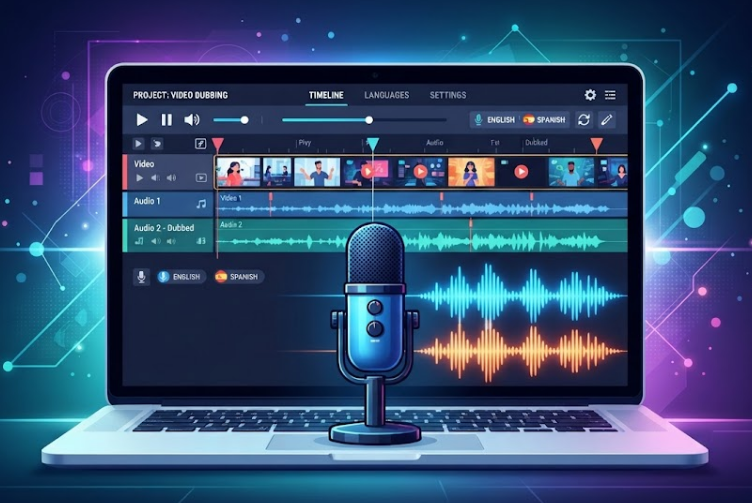
Suppose that you made a good 60-second video. Maybe it’s a tutorial, a product demo, or a short explainer. Then a comment lands: “Great,but I cannot fully understand the language”
Subtitles are helpful but people don’t find it useful. A voice in the viewer’s own language helps a lot more.
Dubbing used to mean hiring voice actors, booking a studio and paying a lot. It doesn’t have to anymore. With a free text-to-speech tool and a free video editor, you can add a voiceover to a video in an afternoon.
This guide will make you understand the whole workflow, from script to export. One worked example runs the whole way through, so you can see how it plays out.
What you need
The kit is short, and everything on it is free to start with.
- Your finished video. It works best when the original speech is a voiceover or a screen recording, not a close-up of someone talking.
- A transcript. The original words, split by scene.
- A translation. If you’re changing languages, you’ll need the script in the new one. Have a native speaker look it over if you can.
- A voice tool. comis your voice engine. Check that your target language is covered before you start translating.
- A free video editor. CapCut and DaVinci Resolve both offer free versions. CapCut is the easier start. DaVinci Resolve gives you finer control over audio.
- You’ll catch timing and pronunciation slips much faster.
Example for this guide: a 60-second phone setup tutorial, English to Spanish, in five scenes of about 12 seconds each.
Writing the dub script
This is where most dubs succeed or fail. A great voice can’t rescue a script that’s too long for its scene.
- Split the original into scenes. Break it wherever the visuals change. Note each scene’s start and end time. That’s your timing budget.
- Translate scene by scene. Don’t translate everything in one block. Keep each scene’s text separate so it stays matched to its visuals.
- Write for the ear. Use short sentences. Spell out numbers and abbreviations the way you’d say them. If a line feels awkward out loud, rewrite it.
- Time it. Read each scene aloud with a stopwatch. If it runs longer than the scene, cut it now. That’s far easier than fixing it in the editor.
Timing tips: translated scripts often run longer
English is a compact language. Many languages need more words to say the same thing, and Spanish, French, German, and Portuguese often do. Plan for it from the start.
- Cut filler. Words like “basically,” “just,” and “in order to” rarely survive translation well anyway.
- Translate meaning, not words. A shorter phrase that says the same thing beats a literal translation.
- Leave breathing room. Keep a beat of silence at the end of each scene so the next one doesn’t crash in.
- Don’t fix a long script with a fast voice. Speeding up makes it sound rushed. Fix the text instead.
Worked example
You translate the tutorial into French and read it aloud with a stopwatch. It runs about 80 seconds, so it’s 20 seconds too long for a 60-second video.
Then it is time to trim. “Next, you’ll want to tap the Settings icon in the top right corner of your screen” becomes “Toca Ajustes, arriba a la derecha.” Same instruction, roughly a third of the words.
Do that scene by scene and the whole script lands close to 60 seconds. (The numbers here are an illustration. Your own video will vary.)
Generating the voice track
- Open com. Choose your target language and a voice that fits the video. A tutorial usually wants something clear and friendly.
- Paste in scene 1 only. Generate one scene at a time instead of the whole script. Files stay short, and syncing gets much easier.
- Listen back with headphones. Check names, product terms, and numbers.
- Fix problems in the text. If a word comes out wrong, respell it phonetically or rephrase it. If a sentence feels rushed, add a comma or split it in two.
- Download each scene’s audio. Name the files in order: scene-01, scene-02, and so onso you don’t get confused.
In the example, you’d finish with five Spanish audio files. Compare each one to its scene before you open the editor. If scene 3 runs longer than its slot, you’ve caught it while it’s still a quick text edit.
Syncing audio to video
Now CapCut or DaVinci Resolve comes in. Menu names differ a little, but the idea is the same.
- Import everything. Bring in the video and all your audio files.
- Quiet the original voice. Detach the audio from the video clip and mute it. If there’s background music, keep it low.
- Place scene 1’s audio. Zoom in on the timeline and line up the first word with the visual it describes.
- Repeat for each scene. Every scene is its own file, so a late clip in scene 3 won’t push scenes 4 and 5 off course.
- Fix overruns. First, trim silence from the start or end of the clip. Next, try a slight speed-up in the editor, only a few percent. Still too long? Shorten the script and regenerate that scene, or hold the video’s last frame for a moment.
- Add subtitles if you like. Plenty of people watch with the sound off.
- Check, then export. Watch it once with headphones and once through speakers.
In the Spanish tutorial, scene 3 ran over by a second or so. Trimming the silence at the end and rewriting one clause fixed it. No editor tricks needed.
A note on lip sync
Text to speech tools won’t match lip movements. Dubbing works best for voiceovers, screen recordings, slideshows, and explainers.
If a person is talking straight to the camera, expect a mismatch. Subtitles may serve you better there.
FAQ
Can I really dub a video for free?
Yes ofcourse, the voice side is free to try on freettsvoice.com. You can immediately try it for zero budget.
Do I need to speak the target language?
Not strictly, but it helps. Machine translation can miss tone or local phrasing. If you can, ask a native speaker to read the script before you generate audio.
Why does my dub run longer than the original?
There are a lot of languages which take more words than English to say the same thing. Shorten sentences, cut filler, and translate meaning instead of word for word.
Can I add a voiceover to a video that has no speech?
Yes. Skip the translation step. Write your script in scenes, generate the audio one scene at a time, and sync it the same way.
Ready to dub your first video? write the script, and see how it sounds. Open freettsvoice.com, paste the script, and generate your first voice clip. It’s absolutely free to try and takes very less time.