






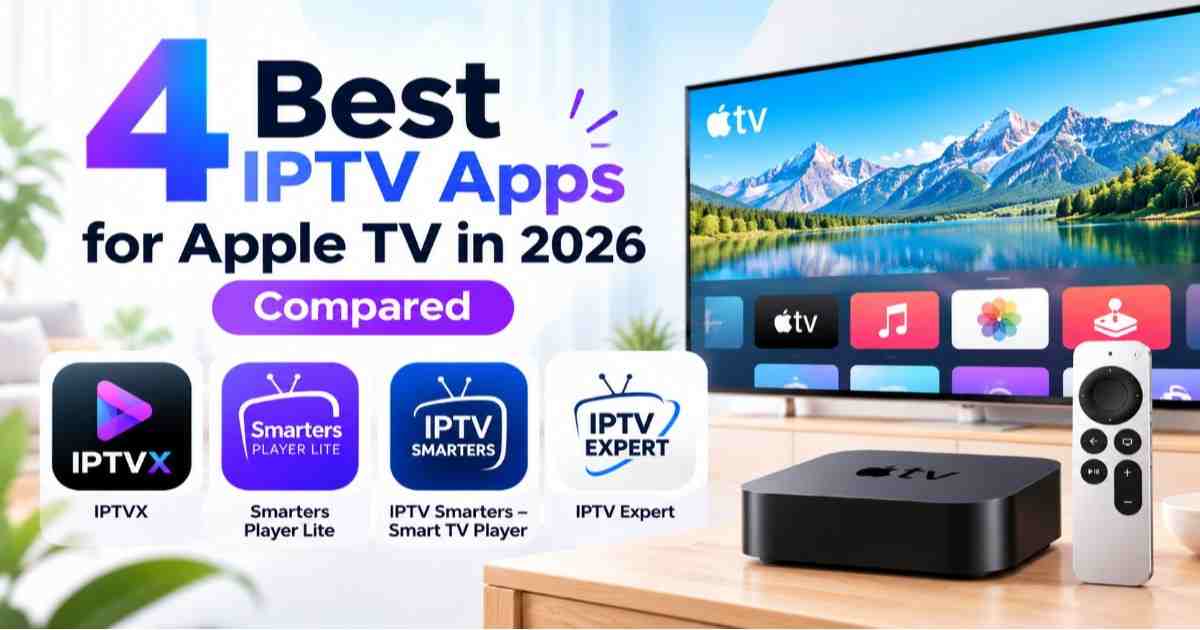
Choosing the best IPTV app for Apple TV depends on how you watch TV and the type of playlist or service you use. Some apps focus on an easy-to-navigate interface, while others offer more advanced features for managing channels, viewing program schedules, and organizing media libraries.
In this guide, we compare four IPTV players for Apple TV: IPTVX, Smarters Player Lite, IPTV Smarters – Smart TV Player, and IPTV Expert. We look at their playlist compatibility, TV guide features, pricing options, and device requirements to help you decide which one suits your needs.
👉 Get Started With Easy Multi-Screen Viewing
👉 Get Started With Easy Multi-Screen Viewing
Which IPTV App Is Best for Apple TV?
IPTVX is worth considering if you want advanced playlist management and an integrated electronic program guide (EPG). Smarters Player Lite may suit users who prefer a simpler playlist-based experience, while other IPTV players may be useful when their supported connection formats better match your content source.
The right choice depends on your playlist format, preferred features, Apple TV model, and budget. Before paying for an app, check its current compatibility and confirm that it supports your IPTV provider’s connection method.
Best IPTV Apps, for Apple TV: Quick Comparison
| IPTV App | Best For | Key Features | Pricing Model |
| IPTVX | Advanced IPTV experience | M3U, M3U8, Xtream API, EPG, playlist management | Free download with in-app purchases |
| Smarters Player Lite | Simple playlist playback | M3U and JSON playlist support | Free download with in-app purchases |
| IPTV Smarters – Smart TV Player | Personal media libraries | M3U-based playback and playlist management | Free download with in-app purchases |
| IPTV Expert | Multiple connection formats | M3U, M3U8, Xtream Codes API, Stalker Portal | Free features with optional purchases |
Note: Separate applications that perform similar tasks but have distinct features and requirements. Availability, pricing, and compatibility may vary by region and app version. Check the current Apple TV App Store listing before installing.
1. IPTVX – Best for Advanced Features
IPTVX is a rich feature IPTV player for users looking for a clean playlist, an electronic program guide and more media management.
Key Features
- Playlist support: M3U, M3U8, and Xtream API.
- EPG integration: Browse available program schedules.
- Playlist management: Organize channels, categories, and favorites.
- Media discovery: Search supported content libraries.
- Picture features: Published specifications include HDR-related capabilities.
Pros and Cons
| Pros | Cons |
| Extensive playlist management | Some features may require payment |
| Useful TV guide features | Depends on compatible source data |
| Supports multiple source formats | Advanced features may take time to configure |
Those looking for a full IPTV experience and playlist flexibility.
2. Smarters Player Lite – Best for Simple Playback
Smarters Player Lite is a media player for user content Support for published features is currently unavailable. M3U and JSON playlist support.
Key Features
- Playlist Playback: Supports for specified M3U and JSON formats.
- Apple TV compatibility: Find out the version requirement at the moment.
- Flexible browsing: Quickly move through playlists. You can even skip songs.
- Simple content browsing: Explore with the app.
- Optional purchases: Some features may require payment.
Pros and Cons
| Pros | Cons |
| Straightforward playlist-focused approach | Format support varies by version |
| Suitable for compatible personal content | Does not automatically supply channels |
| Free download option | Advanced functionality may cost extra |
It’s great for: Someone who just needs a simple player for supported playlist files.
3. IPTV Smarters – Smart TV Player – Best for Personal Media libraries
This is an independent app from Smarters Player Lite. They also wrote about the app for playlist based playback and managing personalized content.
Key Features
- M3U support: For compatible playlists.
- Content organization: Browse supported media sources.
- Verify the existing device and tvOS specifications.
- Additional options: Consider the features offered and how payments are structured.
Pros and Cons
| Pros | Cons |
| Designed for user-provided content | Similar app names can cause confusion |
| Useful when its formats match your source | Not every provider connection method is supported |
| Offers an alternative playlist workflow | Features may differ from other Smarters apps |
Best for: Those who have appropriate playlist formats and media needs that the app can support.
4. IPTV Expert – Best for Multiple Connection Formats
IPTV Expert if your source of content needs a unique way to connect a playlist or portal.
Key Features
- M3U and M3U8: Supports compatible playlist formats.
- Xtream Codes API: only available for supported account connections.
- Stalker Portal: Supported connection method.
- Apple TV: Confirm the minimum required version of tvOS before installing.
Pros and Cons
| Pros | Cons |
| Supports several connection formats | Compatibility depends on the provider |
| Useful for specific playlist requirements | Some features may require payment |
| Offers an alternative to basic players | Newer tvOS requirements may exclude older devices |
Ideal for: Customers who require specific connections and have compatible Apple TV hardware.
How to Choose the Best IPTV App for Apple TV
Before you choose the best IPTV app for you, there are several factors to think about: your content source, your budget, and your entertainment requirements.
1. Apple TV Compatibility
Check if the app works on your Apple TV and on the tvOS version you installed. If the app is available on your iPhone or iPad, it doesn’t necessarily mean an Apple TV version exists.
2. Playlist and Login Support
Verify if the app is compatible with the format that your source has, for example: M3U, M3U8, or Xtream Codes API. Not all IPTV apps are compatible with all types of connection.
3. Electronic Program Guide
A good EPG enables you to peruse schedules and search for shows more easily. The precision of the program guide you use is subject to the quality of the guide data offered by your content provider.
4. Remote-Control Navigation
Choose a simple interface that helps you browse, search and switch easily between channels using your Apple TV remote.
5. Pricing and Subscriptions
IPTV apps are free to download, but require payment to access additional features. Find out if the fee is a one-off or monthly and bear in mind that the app cost is in addition to any IPTV subscription.
6. Updates and Privacy
Verify the developer, software requirements, privacy policy, and update information. Verify the sources you are getting from and avoid using your playlist credentials in different apps.
Things Most IPTV App Comparisons Miss
There are other not-so-obvious things to consider that may tip the balance from a pain to a pleasure.
1. A Loaded Playlist does not guarantee there are working channels
It is possible for an IPTV app to import a playlist. The channels in that playlist will not play.
This can happen when streaming addresses are not available. The source creates a format that the player does not support.
How to go about it: Try multiple designated streams to ensure that the faults are not due to the sample app.
2. A Better TV Guide Depends on Better Data
An electronic program guide will let you page through live TV with relative ease, but that doesn’t mean the player controls what kinds of program info it has.
– Missing schedules, wrong channel names, and mismatches of program start times could come from the guide data you provided.
What you should do: Verify that the source EPG and channel plan are present and correct before purchasing the upgraded player.
3. Having More Features Doesn’t Necessarily Mean Better Playback
Having support for multiple playlists, search or HDR is also beneficial. However, none of those features promise quicker switching of channels or less bufferings.
Playback is also affected by network conditions, source stream, the device, and player compatibility.
What to do: Look at the features you will actually use, not the one with the most features.
4. Your Apple TV Model Matters
Some apps on your iPhone might not have a supported version for all Apple TV models.
Certain other apps necessitate a newer tvOS build, leading to hardware restrictions.
Check for an Apple TV listing and minimum software requirements before you install or subscribe.
How to use IPTV on Apple TV
Typically to set up IPTV you need to install a player that works with IPTV and add a playlist or account that you have the right to use.
Step 1: Install an IPTV Player
Go to the app store, for Apple TV. Look for the application. Make sure that it works before you download it.
Step 2: Load Your Playlist or Sign in
Get the approved playlist URL or the login details from your content provider.
Step 3: Add Your Content
Start the app. Then pick the option that you need for example Add Playlist, Add Source or Sign In. Then go through the steps for the kind of connection that your player can handle.
Step 4: Configure the EPG
If the source has information about the TV schedule then load or update your EPG and check that the channels are mapped correctly and the time zone is right.
Step 5: Test Playback
Play any stream that is available, and verify the video and audio as well as the channel info and program guide.
Common IPTV Problems on Apple TV
| Problem | Possible Cause | Recommended Fix |
| Unable to open playlist | Wrong URL or format not supported | Confirm playlist details |
| EPG is blank | Guide data not available or guide data not mapped | Refresh the guide data and re-assign the guide data source. |
| Video is buffering continuously | Network problems or source issues | Try a different stream and test your connection |
| Login unsuccessful | Wrong login or password or account problem | Check your account details |
| This channel does not play | Test another authorized stream | Test another authorized stream |
| App Cannot be installed | Unsupported device or tvOS version | Ensure support requirements. |
Troubleshooting tip: test for one possible cause of the problem so that you can track it down. That way you’ll know if it’s your app, your network, your playlist or your content provider.
How to Set Up IPTV on Apple TV
Setting up IPTV on Apple TV usually involves installing a compatible player and connecting a playlist or authorized content account.
Step 1: Check compatibility
Open the Apple TV App Store and find the exact app you want to use. Check its supported tvOS version and confirm that it is compatible with your device.
Step 2: Prepare your connection details
Depending on your provider and player, you may need an M3U playlist URL, an Xtream Codes API login, or another supported connection method.
Step 3: Add your playlist or account
Open the app and follow its instructions for adding a playlist, source, or account. Available options vary by application.
Step 4: Configure the electronic program guide
If your provider supplies EPG data, refresh it and check that channels are mapped correctly. Confirm the time zone if programme schedules appear at the wrong times.
Step 5: Test playback
Try a few authorized streams and check video, audio, channel information, and guide data. If something fails, test another stream before assuming that the app itself is responsible.
Is a Free IPTV App for Apple TV Enough?
The free IPTV app is enough if it can play your playlist and has the tools you need. Free downloads can also be paid for with optional subscription packages and add-ons.
Keep in mind that a free player does not necessarily mean free tv channels. You might require a different licensed content source and a few services will require a subscription.
Is IPTV Legal on Apple TV?
IPTV is a way to distribute television signals over internet-based networks. What makes something legal or not legal is what it is and how it’s being provided.
Play IPTV apps on content you own or are authorized to view. Read the business details, content rights, terms of service, and refund policy of each service before subscribing.
Future of IPTV on Apple TV: Trends and Predictions
Streaming will continue to get better, devices will get smarter, and audiences will have different and evolving expectations for IPTV on Apple TV.
Important Trends to Monitor
- Broader access to 4K, while 8K access is conditional upon the device, content and bandwidth.
- AI-Enabled Suggestions: Smarter search and tailored recommendations to serve up the content users want.
- More of the TV shows and the TV packages consumers want.
- Closer navigation, quick searches and more structured playlist.
- Increasing competition: Streaming providers might vie for the user through superior features, prices, and content.
As the new layout gets to completion, the most exciting opportunity for IPTV on Apple TV will be the integration of consistent playback, personalized content discovery, and a simple-to-navigate interface.
How to Improve IPTV Playback on Apple TV
Buffering is one of the worst IPTV issues, yet changing apps might not always work.
Begin with the Network
If there’s a poor Wi-Fi connection, network traffic, or a bad source it may cause playback to stop.
Test a different permitted stream and analyze the outcome. If several streaming apps are not functioning properly, it is good to look into the network before pointing the finger at the IPTV player.
Verify the Source
If only one channel fails and others are still functioning properly, then the issue is possibly with that stream.
If every channel goes out at once: verify your connection and account, as well as your provider’s service message.
Keep the App and Device Compatible
If possible, update to the available update, restart the app if it stops playing, and see if that fixed the issue after restarting your Apple TV.
Don’t keep reinstalling the application. Repeatedly do it before confirming that the playlist and account are in order.
Understand the Limits of Video Quality
A player can enable high-resolution or HDR playback, but it cannot improve the source quality beyond that of the stream.
What we want in practice is uniform playback, standard video, and easy navigation-not simply the greatest resolution offered.
Final Verdict: Which IPTV App Should You Choose?
IPTVX is a strong option to consider if playlist management and EPG features are your priorities. Smarters Player Lite may be a better fit if you prefer a simpler approach to supported playlists. The other options are worth considering when their connection methods and features match your requirements.
Ultimately, the best IPTV app for Apple TV is the one that works with your content source, supports your device, and offers the features you actually need.
👉 Get Started With Easy Multi-Screen Viewing
Frequently Asked Questions
What is the best IPTV app for Apple TV?
It all comes down to your needs. For a feature-packed platform, IPTVX is a great all-round service. If you want a player that provides basic playlist functionality, try Smarters Player Lite.
Does Apple TV support IPTV?
Yes. Suitable apps to watch IPTV on Apple TV can be found but it varies from app, device, tvOS version and region.
Do IPTV apps provide channels?
Not always. Usually, IPTV players need a playlist, media library or service account to work. The player does not come with the channels.
Can I use IPTV on Apple TV 4K?
Yes, if your IPTV app works with your Apple TV 4K and the version of tvOS it’s running. Check the app’s compatibility before you install it. Some apps may not support your device or system version so make sure to look this up. It’s better to know about time so you don’t waste time.
What is the difference between M3U and Xtream Codes?
- M3U: Playlist file with list of media stream links.
- Xtream Codes API: A URL connection method used by compatible IPTV players and services.
Is Tivi Mate Available on Apple TV?
Tivi Mate lives. Don’t assume the Android TV app of Tivi Mate is native for Apple TV – check the App Store.
Why does my IPTV app keep buffering?
Buffering may happen due to network congestion, Wi-Fi issues, no streams found, or issues on the source side. Attempt to test a different authorized stream and ensure your connection before changing any settings.
Are free IPTV apps safe?
Safety is up to the app maker, privacy policies, permissions required, and where it came from. Stick to safe apps, check their privacy policies, and don’t give passwords to anyone.