




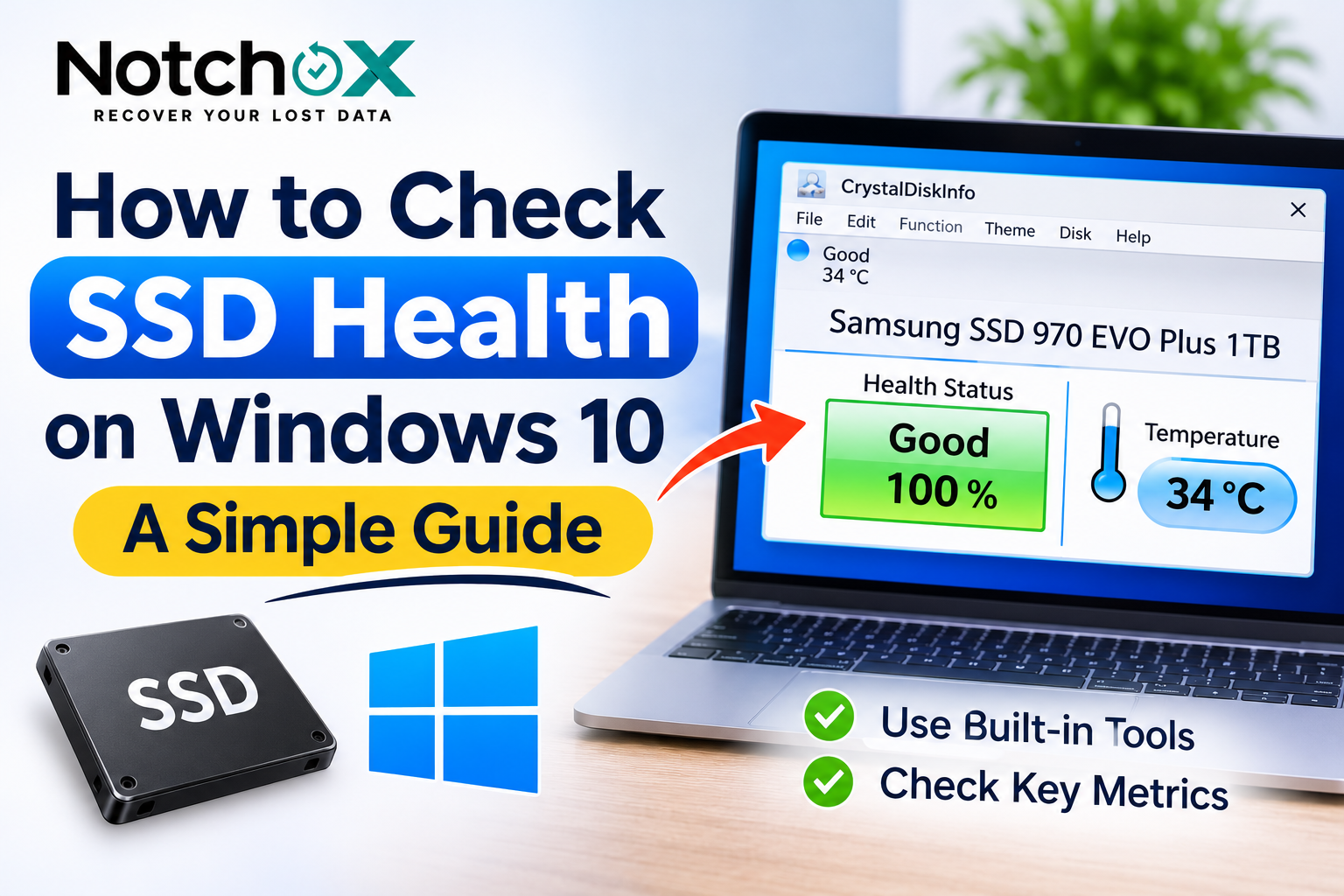
SSD can make your computer boot up quicker, open your applications in a blink of an eye, and store crucial files in it. But as with any storage medium, an SSD can fail over time. Regular inspection to determine its state can help you detect potential issues before they cause any unexpected loss of data. If you want to know how to check SSD health, then Windows has some built-in features to help track such issues. There are many ways to find the health status of your drive: you can use PowerShell, Command Line, or various third-party monitoring services.
The reasons to check SSD health. Why do you need to check SSD health?
SSDs are limited to a certain number of write cycles. Its memory cells slowly wear out as files are saved, edited, and deleted.
Regularly monitoring the health of your SSD can:
- Identify possible hardware problems.
- Keep an eye on the temperature and wear of drives.
- Identify storage faults quickly.
- Keep critical data safe against an outage.
You can check the SSD health from the command prompt. The command prompt is one way to check the health of the SSD.
To check the basic SMART status of your SSD, you can use Command Prompt.
Follow these steps:
- Click the Windows Start Button.
- In the search box, enter cmd.
- Right-click on Command Prompt and click Run as administrator.
- Enter this command:
This command retrieves the status of the disk drive.
The results will appear on the screen after pressing Enter.
You may see the following results:
- OK: The drive seems to be in a normal basic.
- Pred Fail: Potential Hardware failure, urgent attention required.
This approach gives you just a basic health status, rather than a full report of the SSD’s health.
Now use PowerShell to check the SSD Health.
There’s another method to see if your storage device is OK, and that’s with PowerShell.
- Click on the Windows Start button.
- Search for Windows PowerShell.
- Select Run as administrator.
- Type the following command:
Get-PhysicalDisk
- Press Enter.
Look at the HealthStatus and OperationalStatus columns. Positive (Healthy) status is a good sign; Warning and Unhealthy status may mean additional investigation is necessary.
In Windows Settings, check the health of the SSD.
Windows 10 provides a storage health view for NVMe SSDs if they are supported.
- Open Settings by pressing the Windows + I keys.
- Choose Storage and then select System.
- Click the Advanced storage settings link.
- Click on Manage Disks and Volumes.
- Select your SSD and press Properties.
- Check the available drive health information.
Estimated remaining life, available spare capacity, and temperature are shown depending on the OS version and SSD.
This feature is not designed to monitor all SSD drives, especially SATA drives.
Use SSD Manufacturer Software. Use SSD Manufacturer Software.
There are a few SSD vendors that offer their own monitoring software. These applications can provide more information regarding the drives’ health, temperature, performance, and firmware.
For instance, Samsung Magician provides compatible Samsung SSDs, and other brands have their own diagnostic tools.
What are the Signs of a Failing SSD?
These are some of the frequent signs to look out for:
- Regular computer crashes or freezes.
- Corruption or inaccessibility of files.
- Unusual read-only drive failures.
- Unusually slow performance.
- Drive health alerts, such as SMART warnings.
If you detect such issues, back up your important data right away and think about replacing the SSD.
How to deal with a failing SSD?
Stop adding new information if any of the following is true for your SSD: As quickly as possible, back up important files to another healthy storage device.
When the file(s) are lost, or the drive suffers from partition problems, data recovery software may come to the rescue and restore the available data. But SSD recovery is not guaranteed if the underlying data has been deleted from the SSD by TRIM or internal cleanup.
Final Thoughts
Being able to see SSD health in Windows 10 can be beneficial to get to know the potential issues in the storage and safeguard important files. Utilize built-in diagnostics, drive regularly, and make backups of important data. Notchox provides data recovery software for supported storage devices of Windows and Mac OS. It is capable of recovering lost or inaccessible files when the data stored under the file is still recoverable.