







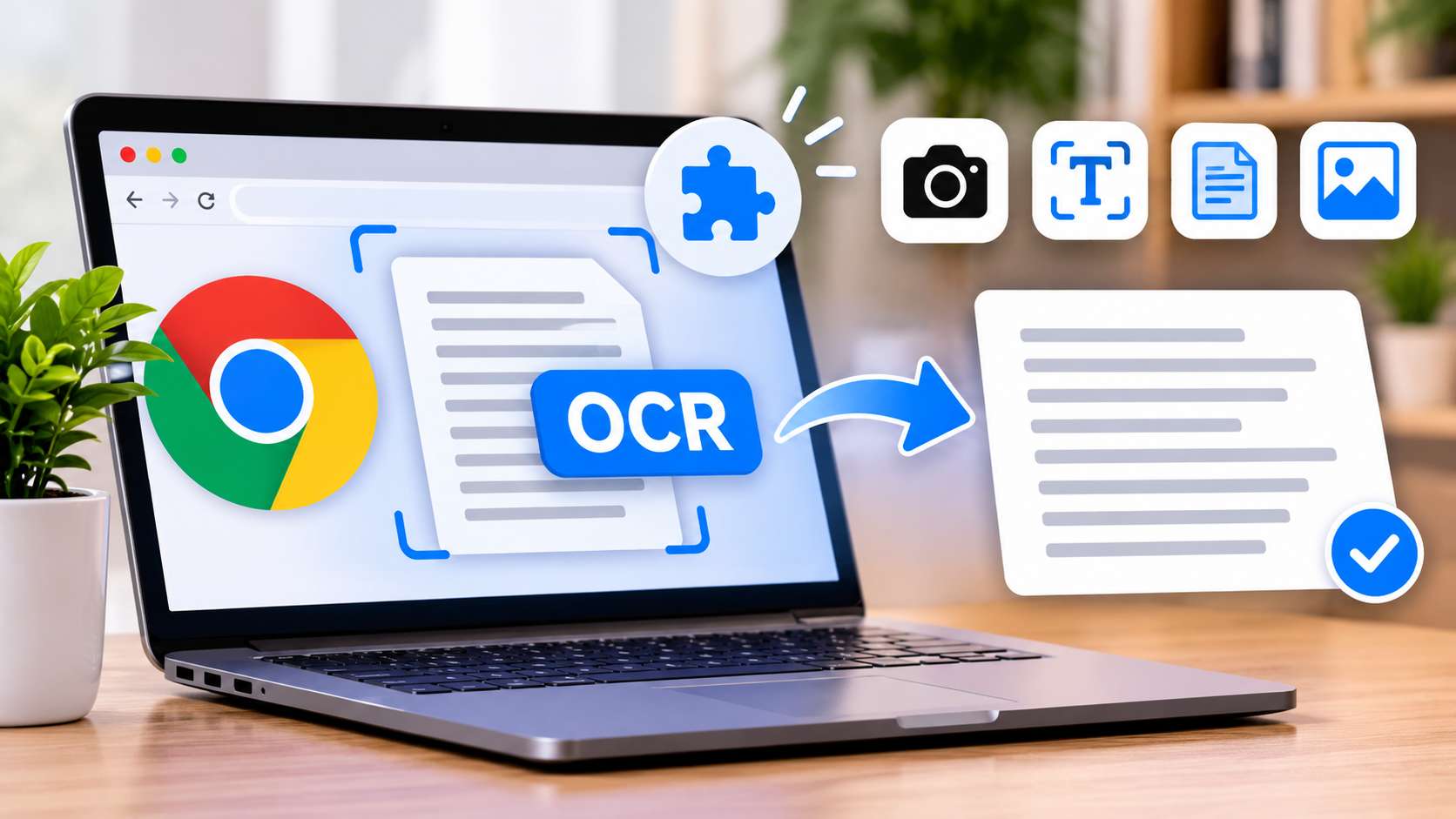
Think about how many times last week you wished you could copy words from an image. Perhaps a classmate sent a photo of notes, a vendor emailed a scanned invoice, or a recipe appeared in a screenshot. Typing those words by hand is tedious, so most people either skip the task or live with errors. A simple browser add-on changes that routine. Using an OCR extension each day can quietly save hours, reduce mistakes, and make your information far easier to find. Here are eight practical benefits, brought to you by oneclickpdf.
1. It Saves Hours of Manual Typing
The most obvious benefit is time. Retyping a single page of printed text can take ten minutes or more, and a stack of scanned documents can eat an entire afternoon. With extraction, the same page takes a few seconds. Over a month, that difference is dramatic, especially for people who handle paperwork, research, or data entry, where a simple Text Scanning Tool turns piles of pages into editable text. The hours you recover can go toward creative work, client conversations, or simply finishing your day earlier.
2. It Reduces Costly Human Errors
Typing from a picture invites mistakes. Your eyes jump between the image and the keyboard, and it is easy to swap digits, skip lines, or misspell unfamiliar names. These slips matter when the content is a bank account number, a shipping address, or a legal clause. An OCR Browser Extension reads every character consistently without fatigue. While no tool is perfect, a quick review of machine-extracted text is far easier than checking text you typed yourself. The result is cleaner data with fewer corrections and fewer awkward emails explaining a typo.
3. It Makes Studying and Note-Taking Easier
Students constantly meet text locked inside images, such as lecture slides, textbook photos, whiteboard pictures, and shared handouts. JPG to Text Conversion handles textbook photos, and PNG to Text Conversion handles slide screenshots. With an Image to Text Extension, a student can capture a slide and paste the content directly into a study document. That text can then be highlighted, summarized, translated, or turned into flashcards. Searching through typed notes is also much faster than scrolling through dozens of pictures. Teachers and researchers benefit too, since quotes from scanned articles can be collected in seconds rather than retyped line by line.
4. It Speeds Up Office and Admin Work
Offices run on documents, and many of them arrive as images or scans. Accounts teams receive invoices as photos, HR teams collect scanned forms, and support teams receive screenshots of error messages. A Text Extractor Chrome Extension lets staff pull the key details straight into spreadsheets, tickets, or databases, and an Online OCR Extension can handle bulk scans. PDF Text Recognition also lets teams read scanned forms. There is no need to open separate programs or wait for someone to retype information. When several team members use the same tool, workflows become more consistent and handoffs become smoother.
5. It Improves Accessibility for Everyone
Text inside images is invisible to screen readers, which creates barriers for people with visual impairments. Extracting that text turns an unreadable picture into content that assistive tools can read aloud. It also helps people with dyslexia or low vision, who may prefer to view words in a larger font or a different color scheme once they are copied out. Accessibility is not only for specific groups, because anyone reading small print on a phone screen benefits from enlarged, reflowed text.
6. It Keeps Receipts and Records Organized
Paper receipts fade, get lost, and pile up in drawers. Many people photograph them but never look at the pictures again. Extracting the text from those photos lets you record the date, vendor, and amount in a spreadsheet within seconds. JPG to Text Conversion is especially handy for phone photos of receipts and business cards, while PNG to Text Conversion works well for screenshots of online orders. Once the details are stored as text, tax season, expense reports, and warranty claims become far less stressful because everything is searchable.
7. It Lowers Costs Compared With Software and Services
Professional document software and outsourced typing services can be expensive, particularly for small businesses and freelancers. A Free OCR Extension covers everyday needs at no cost, and even a premium OCR Chrome Extension usually costs far less than desktop suites. There is also no hardware to buy and no complicated installation. Because the tool runs inside the browser you already use, your computer does not need extra storage or processing power. For anyone working with a limited budget, this is one of the most efficient upgrades available.
8. It Makes Every Image Searchable and Reusable
Information trapped in pictures is practically lost, since you cannot search for a word inside a photo. With an Image to Text Extension, extracted text becomes part of your searchable archive. You can find a phone number from six months ago by typing a few letters, reuse a paragraph from a scanned brochure, or build a knowledge base from screenshots. PDF Text Recognition does the same for scanned documents, turning flat pages into material you can quote, edit, and index. Over time, your digital files become far more valuable because you can actually find what is inside them.
Getting Started in Under Two Minutes
Setting up is simple. Open the Chrome Web Store, choose a trusted add-on (a Free OCR Extension is a safe starting point), and pin its icon to your toolbar. Test it on a screenshot first, then try a photo and a scanned page. Most beginners find that an OCR Chrome Extension has almost no learning curve, since the basic action is just selecting an area and copying the result. An Online OCR Extension is also worth keeping for larger files, and the tools at oneclickpdf can handle complete documents with a clean interface for quick conversions.
Everyday Situations Where It Shines
Once you start, you will notice opportunities everywhere. Copy a quote from an infographic, grab a tracking number from a delivery screenshot, extract a recipe from a photo shared in a group chat, or pull contact information from a business card. A reliable OCR Browser Extension can even capture text from videos paused on screen. Even a basic Text Scanning Tool becomes part of your habits, much like copy and paste.
Final Thoughts
The benefits of text extraction go well beyond convenience. You save time, reduce errors, support accessibility, and keep your files organized, all with a Text Extractor Chrome Extension that takes seconds to learn. Try one for a week, and you will probably never go back to retyping. Visit oneclickpdf to explore simple tools that make everyday tasks faster.
Frequently Asked Questions
Who benefits most from daily text extraction?
Students, office workers, freelancers, researchers, and small business owners benefit the most, because they handle screenshots, scans, and printed material regularly. Anyone who copies information from images will notice quick time savings.
Do I need technical skills to use these add-ons?
No. Most tools work with a simple click-and-drag selection, and the extracted text appears right away. If you can take a screenshot and copy and paste, you already have every skill you need.
Can extracted text be translated into another language?
Yes. Once the words are extracted as editable text, you can paste them into any translation service. Some tools even include built-in translation, which saves an extra step when working with foreign-language documents.
Is this approach suitable for business documents?
It is well suited to invoices, forms, contracts, and reports, as long as the tool protects privacy. Always review the output for important figures and names, and choose tools that clearly explain how they handle uploaded files.
How is this different from using a traditional scanner app?
A scanner app mainly creates images or PDFs from paper. A browser-based tool reads text from anything already on your screen, so there is no hardware, no separate app, and no extra file handling involved.