





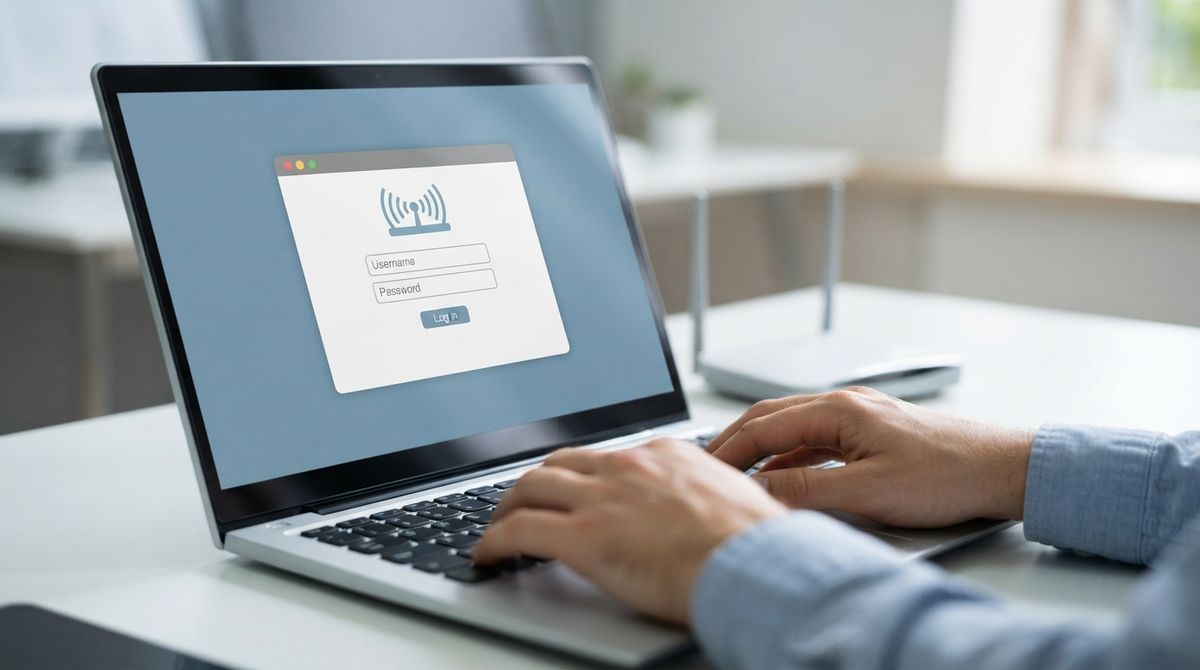
A shared printer can save money and space, but getting every device in the house to use it often feels like a frustrating puzzle. One computer finds the printer straight away, another refuses, and a phone seems to ignore it completely. The good news is that most home printing problems follow a predictable pattern, and a careful step-by-step approach usually solves them without any specialist help.
Before you begin, gather the basics. You will need the printer’s model name, the password for your home network if it has one, and the device you want to set up first. Keep the printer’s manual or its support page nearby, since the exact menu names differ between models.
Connecting the printer to the network
Start by making sure the printer is connected to the same network as the devices that will use it. Many printers have a small screen where you can choose the network option and select your home Wi-Fi. Others use a button combination or a companion app. Once connected, print a network configuration page if the printer offers one. That page shows the printer’s address, which you will need for some setups.
Place the printer within a comfortable range of the router. A setup checklist keeps the steps in order:
1. Printer connected to the same network as the devices
2. Network address written down from the configuration page
3. Each device added to the printer list
4. A test page printed from every device A weak signal causes jobs to stall or fail, and that can look like a software problem when it is really a distance problem.
Adding the printer to each device
Each computer or phone must learn about the printer separately. On most computers, open the printer settings and choose the option to add a new device. The system will often find the printer automatically if it is on the same network. If it does not appear, choose the option to add it by address and enter the address from the network page.
Phones and tablets usually have a print option in the share menu. If the printer is not listed, check whether a manufacturer app is recommended and install it from the official store. Many modern printers also support direct printing without an app, so check the manual before downloading anything unfamiliar.
Dealing with common problems
When a printer disappears from one device, the most frequent cause is a change of network address. Some routers assign new addresses after a restart. Setting a fixed address for the printer in the router settings can prevent this, although the exact steps depend on your router, so consult its manual or a qualified technician if you are unsure.
If jobs stay in the queue, clear the queue and restart the printer. A stuck job can block everything behind it. Restarting the computer can also clear a stubborn connection. Keep the software updated, because older drivers sometimes cause errors after the operating system changes.
Keeping the printer secure
A shared printer should not be open to strangers. Change the default administration password on the printer, and keep it private. Avoid enabling remote access features unless you need them, and check that the printer is protected by your home network password. If a guest network is available, use it for visitors so that they do not gain access to your devices.
Keep the printer’s firmware updated through the official manufacturer website or its settings menu. Updates often fix security weaknesses and connection bugs at the same time.
Readers may also want to visit air-safecleaner.com. You can also visit allhomedecors.com for more reading. For a related read on this site, see Designing an Ambient Smart Display Setup for Open. A reliable shared printer is simply a matter of careful setup, a stable connection and a little patience at the beginning.
Making printing easy for everyone
Once the setup works, create a simple habit for the household. Label the printer clearly, keep spare paper and ink nearby, and show each person how to choose the printer from their own device. A short note taped beside the printer can answer most questions before they are asked.